pen.dev × Claude Code
Best Practices Guide
pen.dev is an AI design canvas integrated into the IDE, Claude Code is an intelligent coding agent in the terminal, and MCP connects the two into a "zero-loss design context" pipeline. This guide aggregates official documentation, community tutorials, practical blogs, and open-source skills to organize a complete, ready-to-use methodology.
Why pen.dev + Claude Code
The Core Problem It Solves: The Design-Code Gap
In traditional workflows, designers craft meticulously in Figma, and developers rewrite it based on annotations—slight margin errors, incorrect font weights, missing hover states, and the final product ends up looking like a "distant cousin of the design." This isn't anyone's fault, but a structural problem of having two toolchains and two sources of truth for design and development.
General AI coding tools haven't cured this either: they can't see your design system, brand colors, and spacing scale. They can only generate components that "look okay" based on patterns they've seen across the web, but don't belong to your product.
Capabilities Map
| Role | What It Provides |
|---|---|
| pen.dev | Infinite canvas, component/variable/slot system, Figma import, built-in AI chat, .pen file format, headless CLI |
| Claude Code | Agentic coding: multi-file read/write, command execution, plan mode, Skills, and MCP extensions |
| MCP | Bridge protocol: allows Claude Code to access design tools like execute, get_app_state, get_screenshot, export_nodes, get_guidelines (As of 2026-07-27, the official documentation consolidated tools from batch_design/batch_get/snapshot_layout/get_variables to these 5, see pen.dev Official Docs) |
Sources: Pencil.dev + Claude Code Workflow · Official AI Integration Docs · Geeky Gadgets
Standard Environment Setup
Synthesizing official documentation and DevelopersIO practical tutorials, here is the community-verified most reliable path (using VS Code as an example, Cursor is similar):
- Install Claude Code and Authenticate: The official recommended native installer is
curl -fsSL https://claude.ai/install.sh | bash(Windows users useirm https://claude.ai/install.ps1 | iex); runclaudeto login via browser. If you fail to install or login, check the Environment First Aid Manual. - Install pen.dev Extension: Search for "pen.dev" in the VS Code extensions panel, look for the publisher
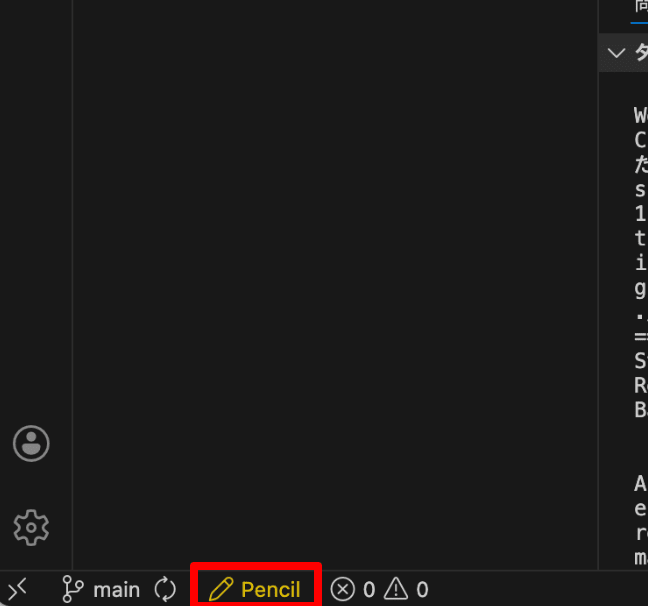
highagency.pencildev. - Start pen.dev: Click the pen.dev pencil icon in the bottom-left corner of the status bar (restart VS Code if it doesn't appear).
- Email Activation: Enter your email on first launch → receive verification code → enter code to login.
- Verify MCP Connection: Start Claude Code, run
/mcp, and confirm that pencil shows as connected. MCP configuration is automatically written during installation, no manual configuration is needed. - Create
design.pen: Place it in the root directory of the project workspace, in the same repository as the code—this is the prerequisite for all "AI seeing design and code simultaneously" workflows.
The MCP configuration automatically written to .claude.json looks like this (paths vary by platform):
"mcpServers": {
  "pencil": {
    "command": ".../highagency.pencildev-x.y.z/out/mcp-server-darwin-arm64",
    "args": ["--app", "visual_studio_code"],
    "type": "stdio"
  }
}
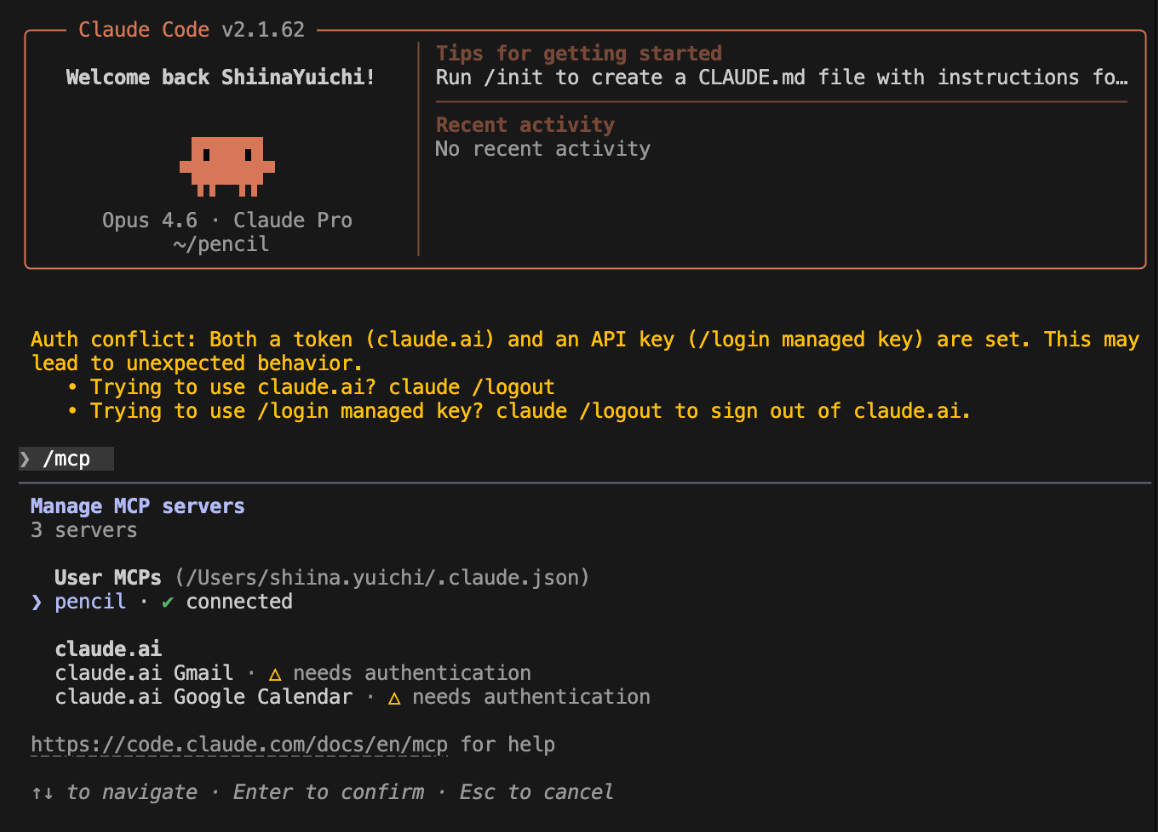
/mcp in Claude Code, pencil showing connected means it's ready · Source: DevelopersIOdesign.pen first → open in IDE → activate → keep .pen in the same repo as the code. For the first time, right-click on the canvas → Open Welcome File to go through the built-in exercises.claude is logged in—most "connection issues" stem from this; ② There's no autosave yet, press Cmd/Ctrl + S frequently; ③ Codex users should note that config.toml might be modified, back it up first.Sources: DevelopersIO Practical Tutorial · Official Installation · Official Troubleshooting
Four Core Workflows
Community practices have converged into four reusable workflow paradigms that can be freely combined according to project phases:
Describe your needs in a few lines of English/Chinese in Claude Code, generate a full-page design directly; then manually fine-tune on the canvas. DevelopersIO tested: travel album, bakery ordering page, coffee shop dashboard, community bulletin board, employee portal—all 5 reached "ready to use as prototype" quality.
Once the canvas is finalized, a simple "Generate a Next.js page from this design" lets Claude Code read precise structures and tokens to generate code. Specifying the tech stack (React/Vue/Tailwind/shadcn-ui…) in the prompt yields the best results.
Ask AI to recreate existing components from src/components onto the canvas ("Recreate the Button component from src/components/Button.tsx"). Structure, layout, and styles are imported together, allowing legacy projects to retroactively build design drafts.
Bridge CSS and pen.dev at the variable level ("Create pen.dev variables from my globals.css"). Submit and rollback .pen alongside code—"zero drift" between design and implementation. Design changes can be diffed directly in PRs.
Tested Results of Workflow A
Direct output generated by DevelopersIO using the "Three-Element Prompt" for each, with zero manual modification:
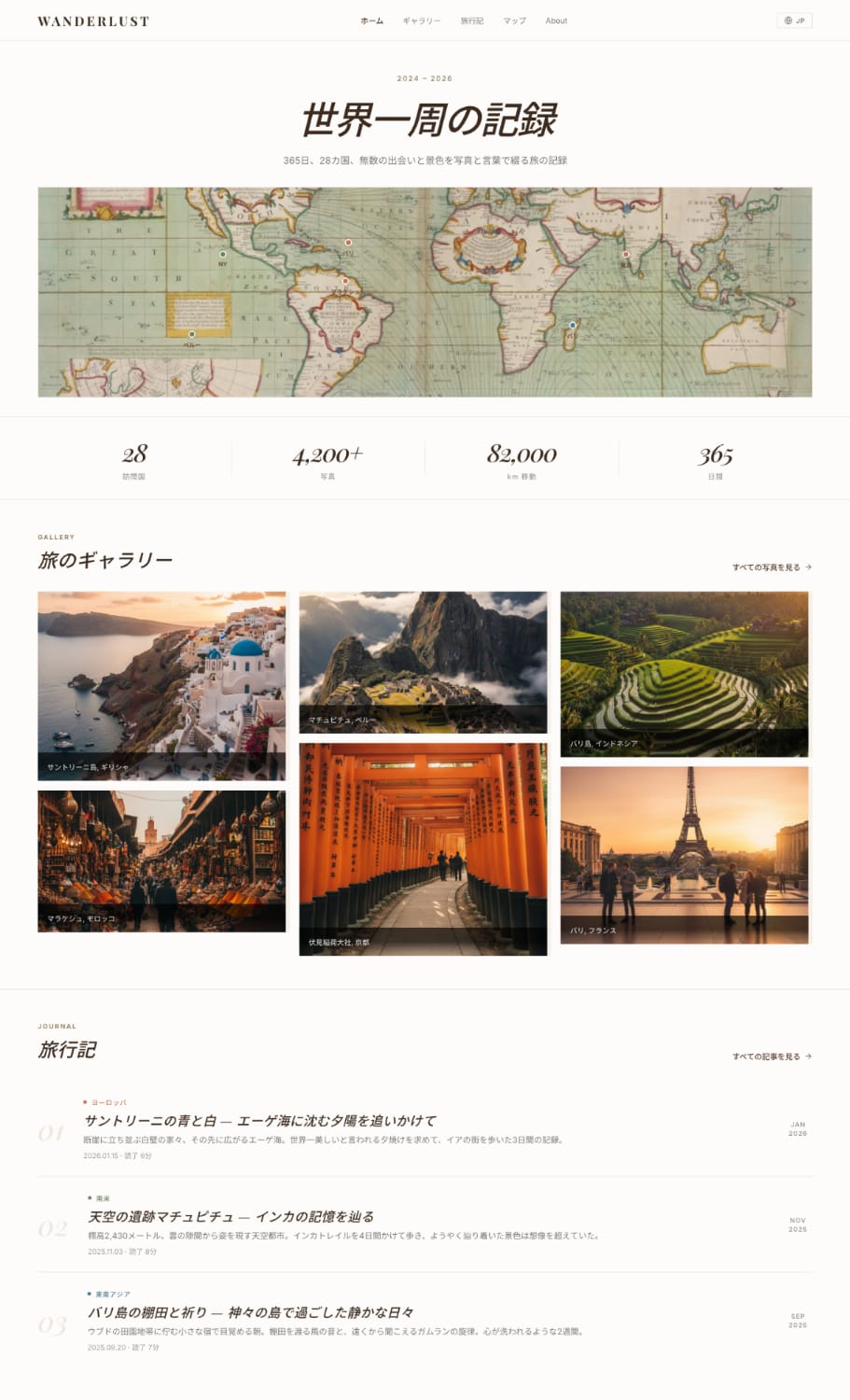
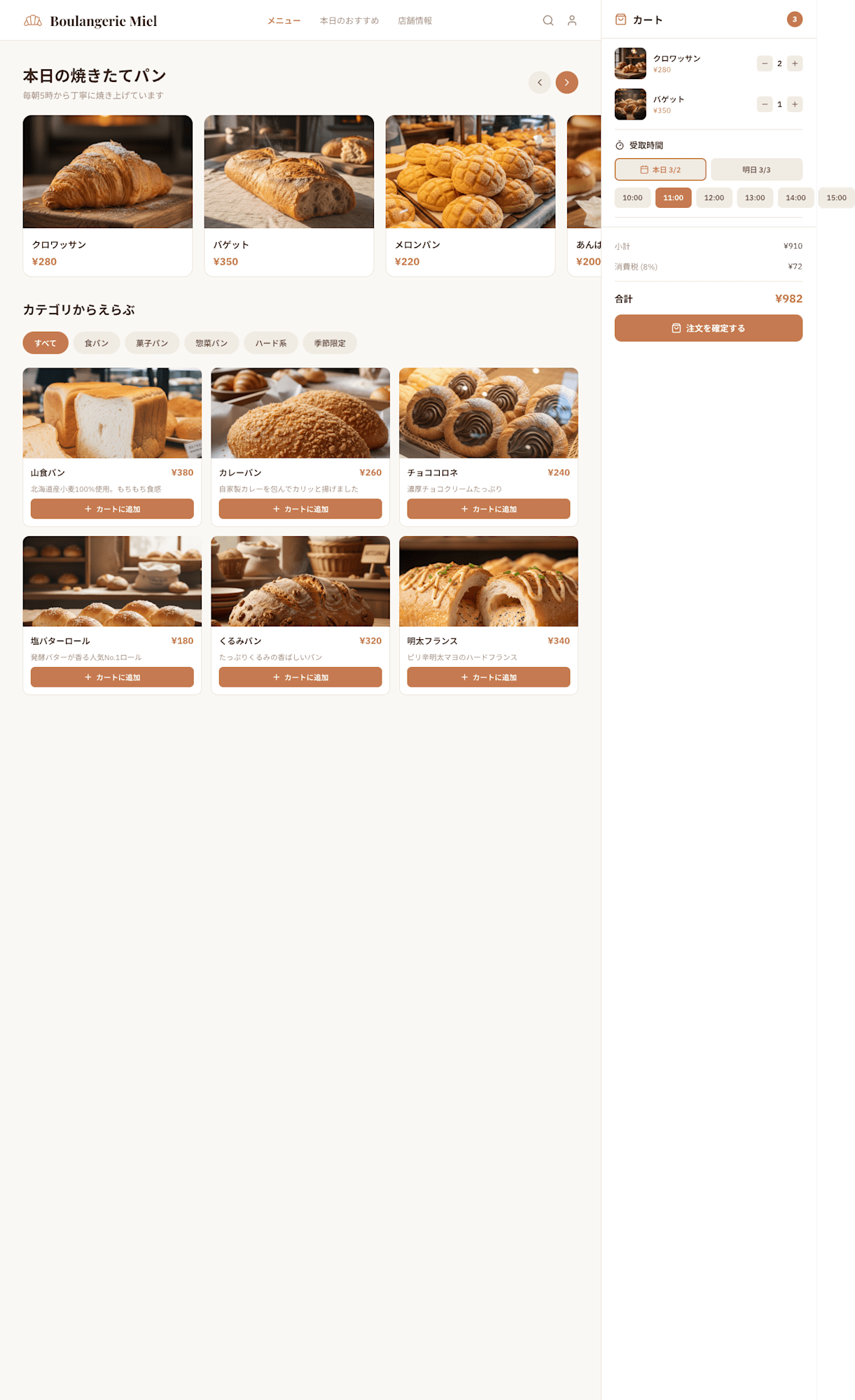
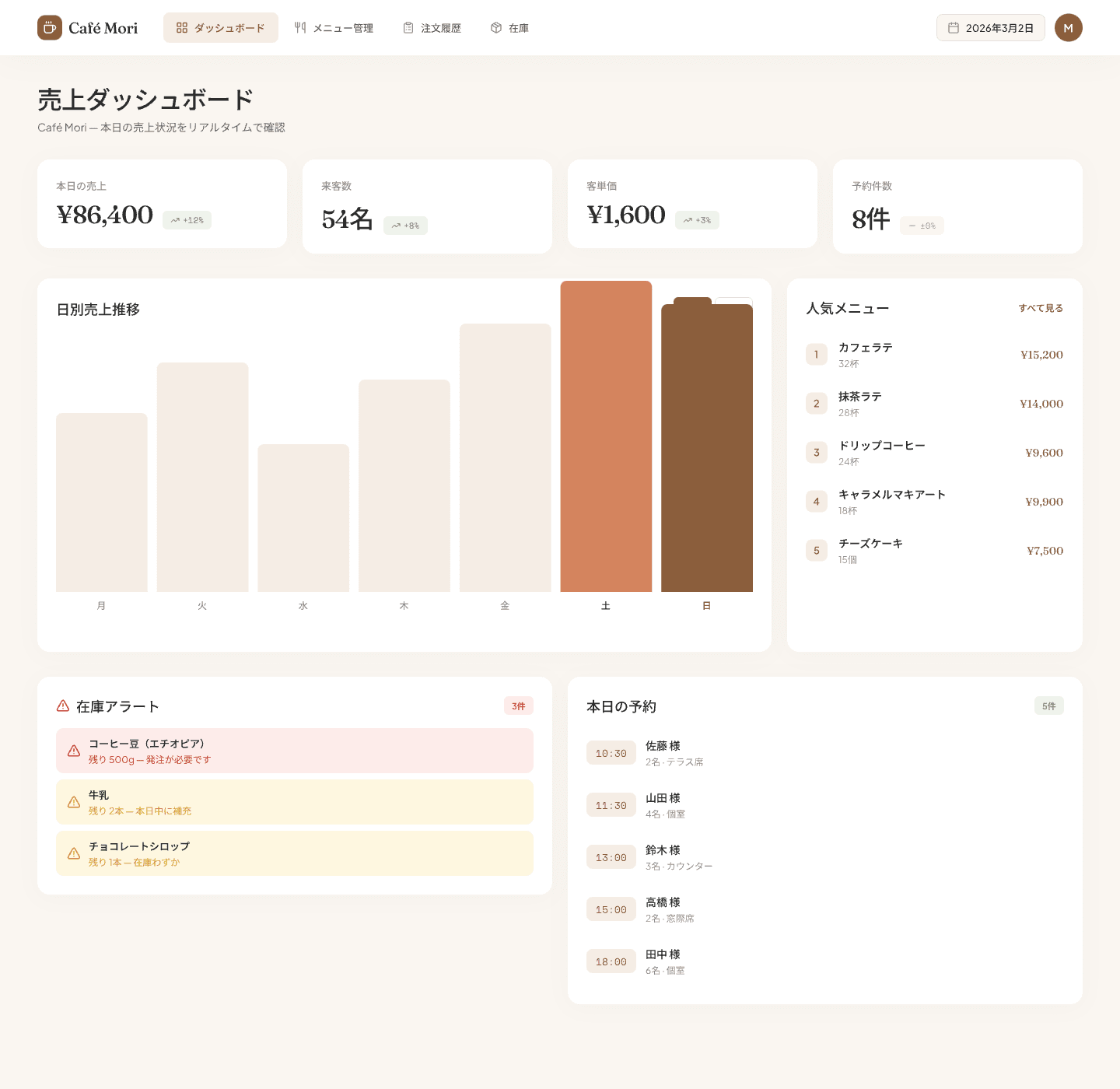
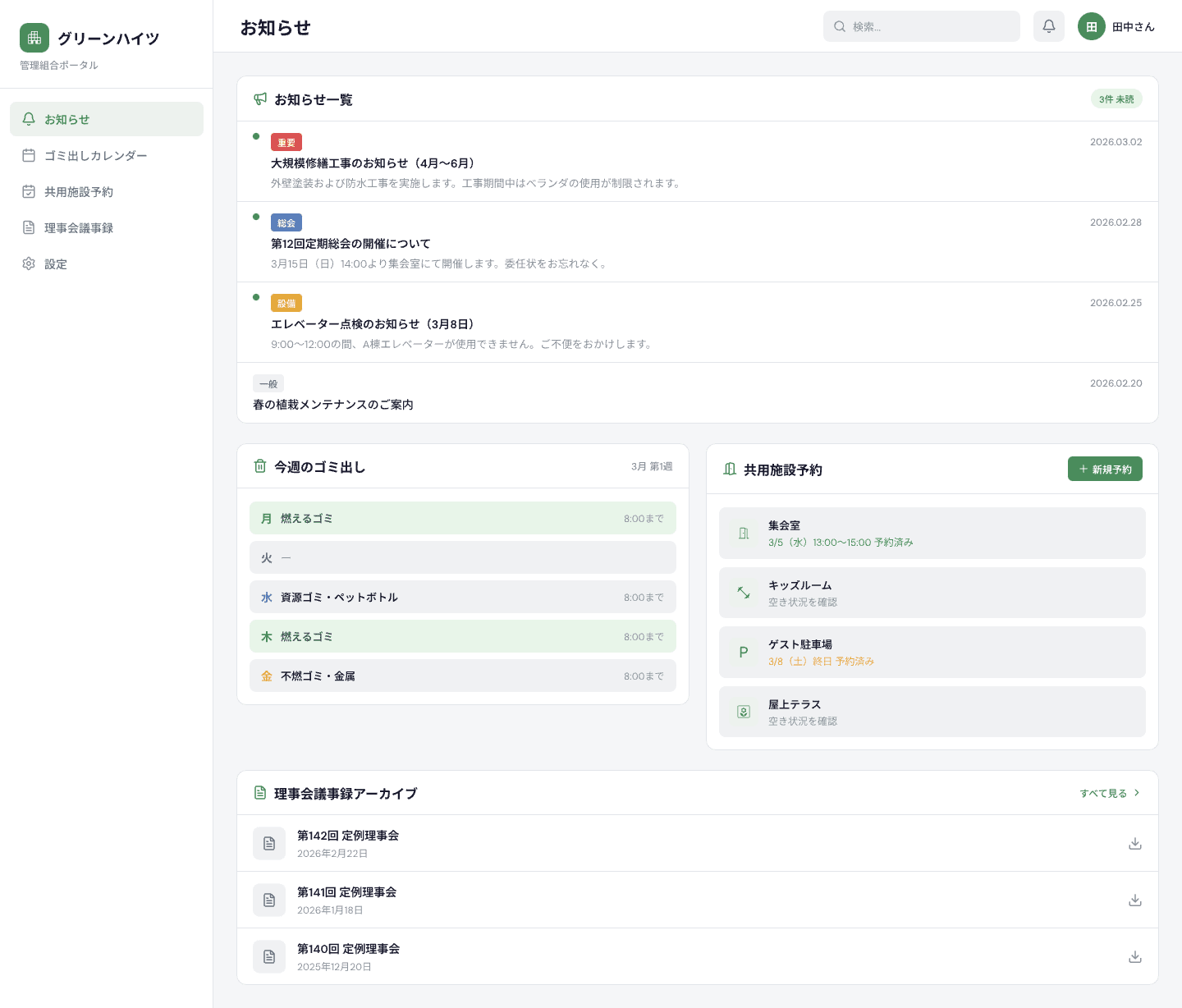
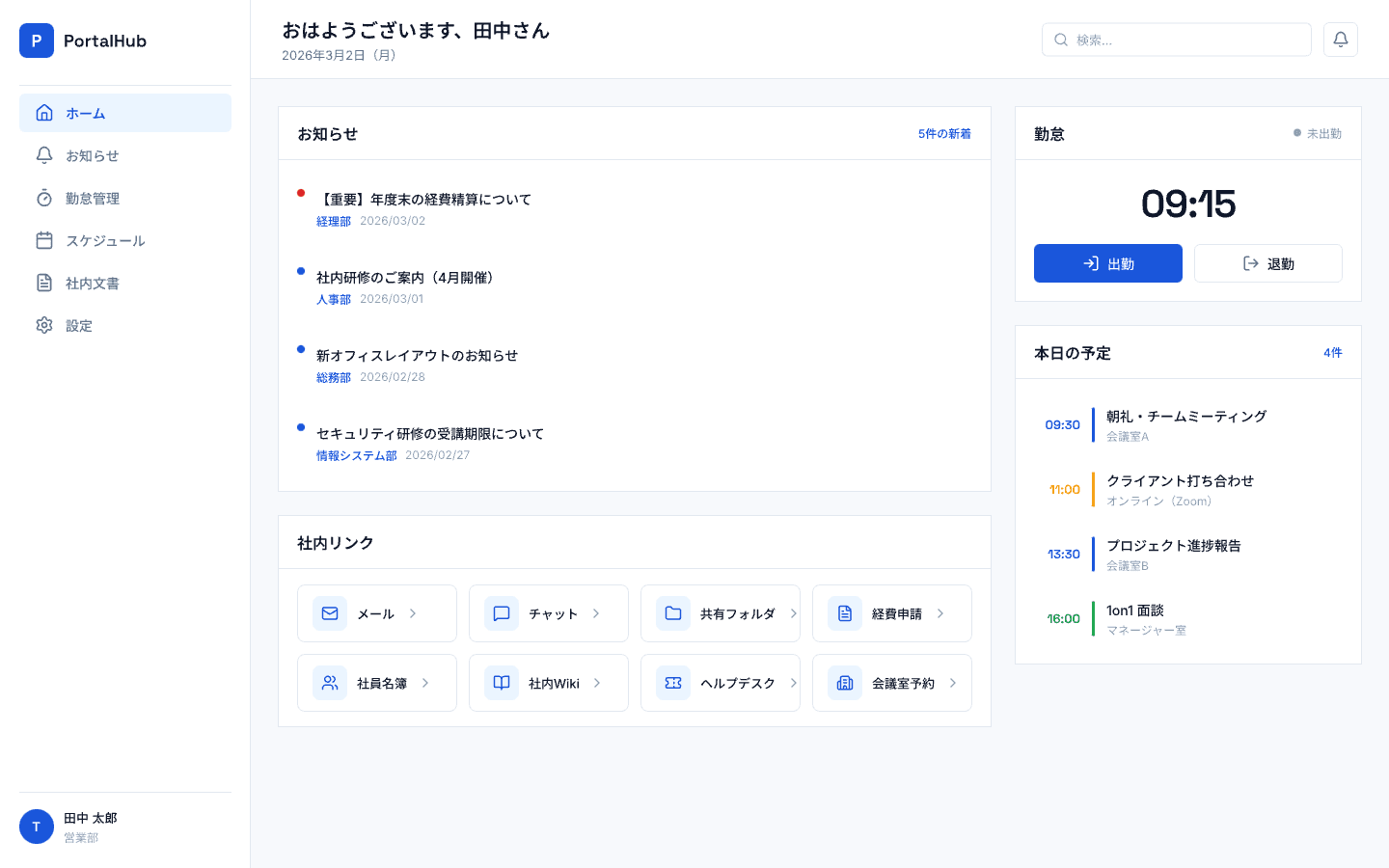
Images above sourced from: DevelopersIO Practical Test Article
Complete Redesign Pipeline for Existing Projects (Tested)
DevelopersIO demonstrated a two-step approach for redesigning a "Settings Page" in an existing project:
- Generate Design: Describe the page requirements to Claude Code (Use pen.dev MCP to design the Settings page for the current project: white card forms, AI analysis settings section, model radio buttons, gray microcopy under each model...) — this produces the .pen design draft first.
- Apply Design: Once confirmed, simply say
Please apply this design, and AI will map the design onto the project's CSS/component code.
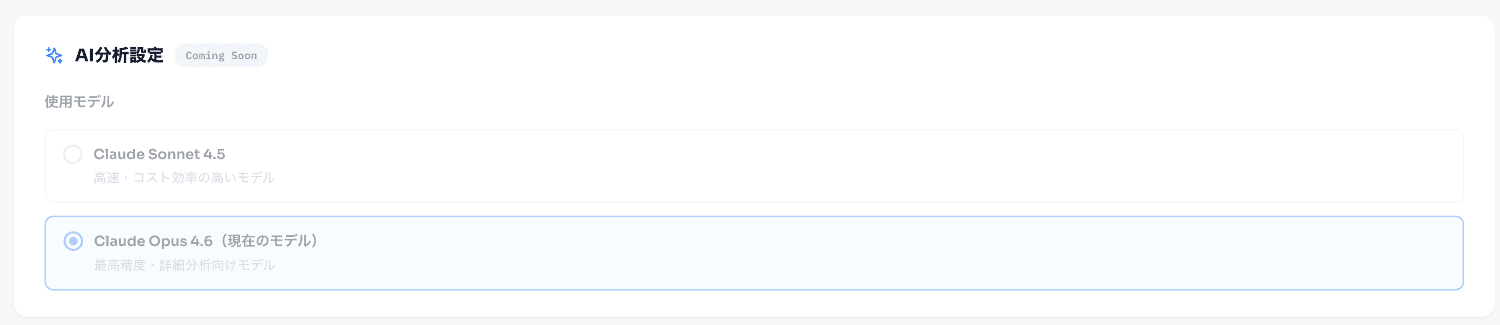
Sources: DevelopersIO · Official Design ↔ Code · daily.dev: Vibe Design with Pencil and Claude Code
Workflow D Deep Dive: What .pen diffs look like and how to handle conflicts
The hero statistics bar in this guide touts .pen = JSON, can be Git versioned, diffed, and merged as the second biggest selling point. However, "can be diffed" doesn't mean "diff is readable," and "can be merged" doesn't mean "conflicts are easy to resolve." Let's break down these three issues clearly.
1. What a .pen diff actually looks like
The official documentation hasn't published a complete real-world .pen export file (the format itself has a detailed schema in the pen.dev Official Docs · .pen File Format section). The diff below is a mockup structure manually constructed according to that schema, not a real file export, used to show the approximate readability of a "text diff"—a single button moved down + text changed + color variable switched:
diff --git a/design/settings.pen b/design/settings.pen
index 8a1f3c2..44e9b7a 100644
--- a/design/settings.pen
+++ b/design/settings.pen
@@ -18,11 +18,11 @@
     {
       "id": "save-button",
       "type": "ref",
       "ref": "primary-button",
-      "x": 24, "y": 480,
+      "x": 24, "y": 512,
       "descendants": {
         "label": {
-          "text": "Save",
-          "fill": "$color.text-secondary"
+          "text": "Save changes",
+          "fill": "$color.text-primary"
         }
       }
     },
The conclusion is "somewhere in between": It is indeed much more readable than Figma's binary/cloud format—a reviewer can see that "the button moved down, the text changed, and the color variable switched". But it has more noise than a code diff—the id/ref/descendants paths of component instances take up quite a few lines, reading more like reviewing a package-lock.json than a code function change. "You can understand what design changed in a PR" holds true, but "understanding at a glance if the change is good" is still not possible—this is exactly the gap that the "CI auto-screenshot" mentioned in Advanced Techniques · CI/CD Integration below aims to fill.
2. How to resolve conflicts when two people edit the same .pen
- Official Quotes (Optimistic side): "Branching and merging—design follows feature branches, merged together, rolled back together" (Design as Code); "No real-time collaboration: currently collaborate via Git—branch in parallel, pull → edit → commit → push → PR" (Troubleshooting).
- Official Quotes (Contradictory side): "Official rule: Do not manually edit .pen, use the editor or MCP tools" (see Pitfalls Checklist below).
- The Gap: .pen is a single JSON object tree. If two branches modify the same
idnode, Git's three-way merge will insert<<<<<<</=======/>>>>>>>conflict markers in the middle of the JSON text—this looks exactly like a code conflict, but resolving it requires manually editing the JSON text, which is exactly the action the official docs explicitly discourage. As of checking for this article (2026-07-28),docs.pencil.devand the three community articles by Jerad Bitner, Tao An, and Xinran Ma cited on this site make no mention of how to handle this scenario.
Without official guidance, the following are viable workaround strategies deduced by the author of this article based on the two published rules above, not an official tutorial:
- Prioritize process avoidance over technical merging: The collaboration method given in the Troubleshooting page is essentially "parallel branching + PR review", it does not say "feel free to concurrently edit the same file". Having only one person edit the same Frame/page at a time is the only path currently endorsed by the official docs.
- Use
importsto split files and reduce conflict surface: The .pen format supports a document-levelimportsfield (keys are aliases, values are relative paths, see .pen File Format). You can split a large design into multiple .pen files organized by page/component, and import them in a root file—the same idea as splitting modules in code to reduce merge conflicts, though the official docs haven't explicitly documented this as a "conflict prevention technique", this is an inferred usage in this article. - If conflict markers actually appear, don't hand-edit JSON, do "choose one + redo": Use
git checkout --ours/--theirsto select one side entirely, then ask the other person to go back into the editor/MCP tool and redo their part of the changes—this way the conflict resolution process never violates the official red line of "only edit .pen using the editor or MCP tools", at the cost of redoing the work.
3. What both sides look like after running two-way variable sync
Before and after running "Create pen.dev variables from my globals.css", the relationship between CSS and the pen.dev variables panel (naming rules based on the official Variables and .pen File Format docs, not real screenshots—the official docs also don't provide actual execution screenshots for this command):
| globals.css (Before Sync) | pen.dev Variables Panel (After Sync) | Type |
|---|---|---|
--color-primary: #0ea5e9; | color.primary | color |
--color-text-secondary: #5a6272; | color.text-secondary | color |
--radius-md: 12px; | radius.md | number |
--font-body: "Inter", sans-serif; | font.body | string |
The CSS side won't see any changes—AI simply reads globals.css and maps each --custom-property to a new record in the pen.dev variables panel (naming removes the -- prefix and splits hyphens into dots based on semantics, which is the customary palette.usage key naming in the .pen format, rather than literally preserving the CSS variable name). The elements on the canvas do not automatically reference these new variables at this point—the sync command is only responsible for "moving existing values from CSS into the variables panel". To make canvas elements use them, you need another instruction like "change all buttons to use $color.primary", or manually replace hardcoded values with variable references in the properties panel. The reverse "Update globals.css with these pen.dev variables" works the same way: it only moves values, it won't automatically refactor CSS rules that are still using old hardcoded values.
Practical Prompt Templates
The following examples come from community testing and official documentation, and can be adapted directly. Rule of thumb: A prompt with the "Page Type + Content List + Color/Vibe" three elements has the highest first-try success rate.
Full Page Generation (Three-Element Template)
Design a [page type / target user]
[Feature and content list: module 1, module 2, module 3...]
[Color and vibe: color palette + adjectives]
DevelopersIO tested this pattern on five page types, all usable on the first try, for example:
Design an online ordering page for a community bakery
Carousel of today's fresh baked bread photos, category menu, pickup time selection, shopping cart feature
Warm design in cream and brown tonesDesign a sales management dashboard for an independent coffee shop
Daily sales bar chart, popular menu ranking, inventory alerts, today's reservation list
Warm brown tone color paletteDesign → Code (Specifying Tech Stack)
Create a React component for this button
Generate TypeScript types for this form
Export this card as a reusable componentGenerate Next.js code with Tailwind CSS and the App Router
Use shadcn/ui components for this layout
Export using Lucide icons instead of Material IconsCode → Design
Recreate the Button component from src/components/Button.tsx
Import the LoginForm from my codebase into this design
Recreate all components from src/components in pen.dev
Variables and Design Tokens
Create pen.dev variables from my globals.css
Update globals.css with these pen.dev variables
Sync typography variables between CSS and pen.dev
Design System Consistency
Ensure all buttons use the primary color variable
Apply 8px spacing grid to all elements
Create 5 variations of this button componentSources: DevelopersIO · Official Design ↔ Code · Official AI Integration
Design System Engineering
Single-page generation is just the starting point; the most mature approach in the community is treating pen.dev + Claude Code as an engineering pipeline for producing and consuming design systems.
Five-Stage Methodology (Community Claude Code Skill)
The widely circulated /create-design-system skill breaks "from idea to design system" into five stages that must be confirmed one by one, with the core idea being stopping for human confirmation at each stage boundary, never rushing through it all at once:
| Stage | What It Does | Key Actions |
|---|---|---|
| ① Idea Mining | Clarify vague ideas: who is it for, what is the core workflow, where is the MVP boundary | Lock in platform (Web/Mobile), vibe (Professional/Playful/Minimal), 5–7 key screens; actively resist scope creep |
| ② Style Direction | Explore visual directions | Generate 2–3 directions using style tags; encourage users to drop Dribbble/Behance/competitor screenshots, real visual references speak volumes |
| ③ Brand Mood Boards | Create 2–3 mood boards in .pen for the user to choose | Each board includes: color palette (primary/secondary/accent/neutral/semantic), typography scale (H1–H4/body/caption), sample components, 3–5 vibe keywords; A: Safe, B: Bold, C: Unconventional |
| ④ Component Library | Build a reusable component library based on the final direction | Set variables (design tokens) first, then build essential components (button states, inputs, cards, nav, badges), mark all as reusable; screenshot for user confirmation |
| ⑤ Key Screens | Assemble the screens decided in stage 1 using the component library | Set the tone starting with the most important screen; insert components as ref instances; always use realistic content, reject lorem ipsum; screen-by-screen screenshot confirmation |
Enterprise Case: Lullabot Brand Library
Lullabot engineer Jerad Bitner's approach shows the correct posture for "library files": pack the entire brand system into an importable design library—56 color variables, typography tokens for Circular + IBM Plex Mono, a 4px grid spacing scale, and 16 reusable components (buttons, cards, form inputs, nav links, badges, tags, blockquotes).
- Their internal tool OpptyNet imports it, Upstraker imports it, and the next new tool will import it too—from the second project onward, you never build the visual language from scratch.
- His summarized takeaway: "With a shared design library, you stop agonizing over which blue to use, and start thinking about what the interface actually needs to do."
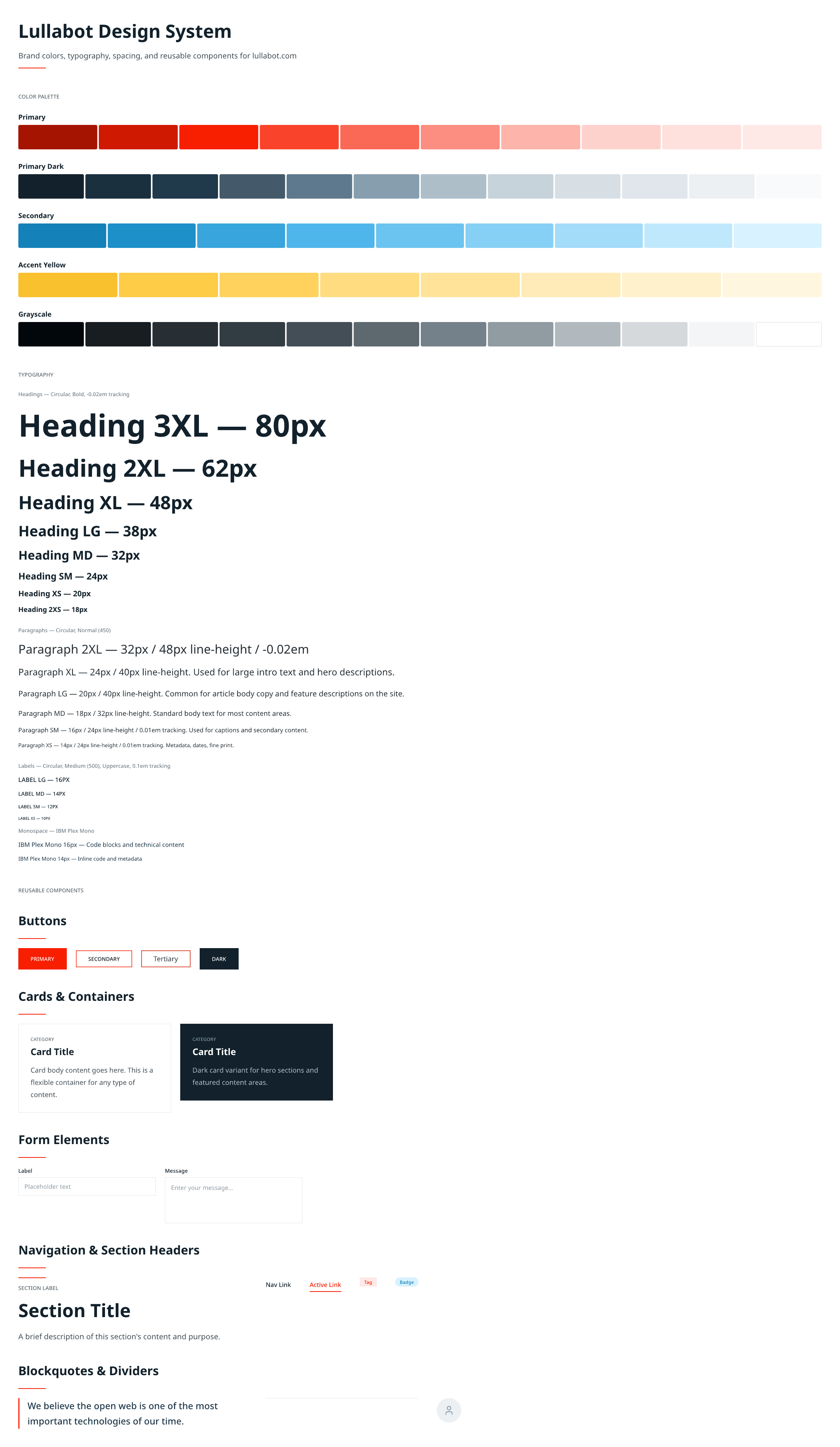
.lib.pen design library (Layers Panel → Libraries → Turn this file into a library), and it can be imported by any project; component updates in the library will sync to all usages. Note: Turning into a library is irreversible.Sources: TobyScr / create-design-system skill · Jerad Bitner: Designing with Pencil and Claude Code · Official Design Libraries
Efficient Prompt Patterns
The Law of Specificity
Iteration Pyramid (Official Recommended Rhythm)
- Structure First — "Create a dashboard layout"
- Then Refine — "Add a sidebar with navigation items"
- Then Polish — "Add hover states to navigation items"
- Finally Finalize — "Align spacing to an 8px grid"
Community consensus aligns with this: Resist the temptation to "generate a complete app with one giant prompt". Small piece of design → generate → review → polish → next piece; the quality is much higher than going all-in at once.
Context Injection Techniques
- Reference Existing Assets: "Use our existing button component", "Follow the spacing scale in the variables", "Keep the style consistent with the Header component"—tell AI to reuse, not reinvent.
- Name Drop Design Systems: "Follow Material Design principles", "Use shadcn/ui style", "Follow the specs in design-system.pen".
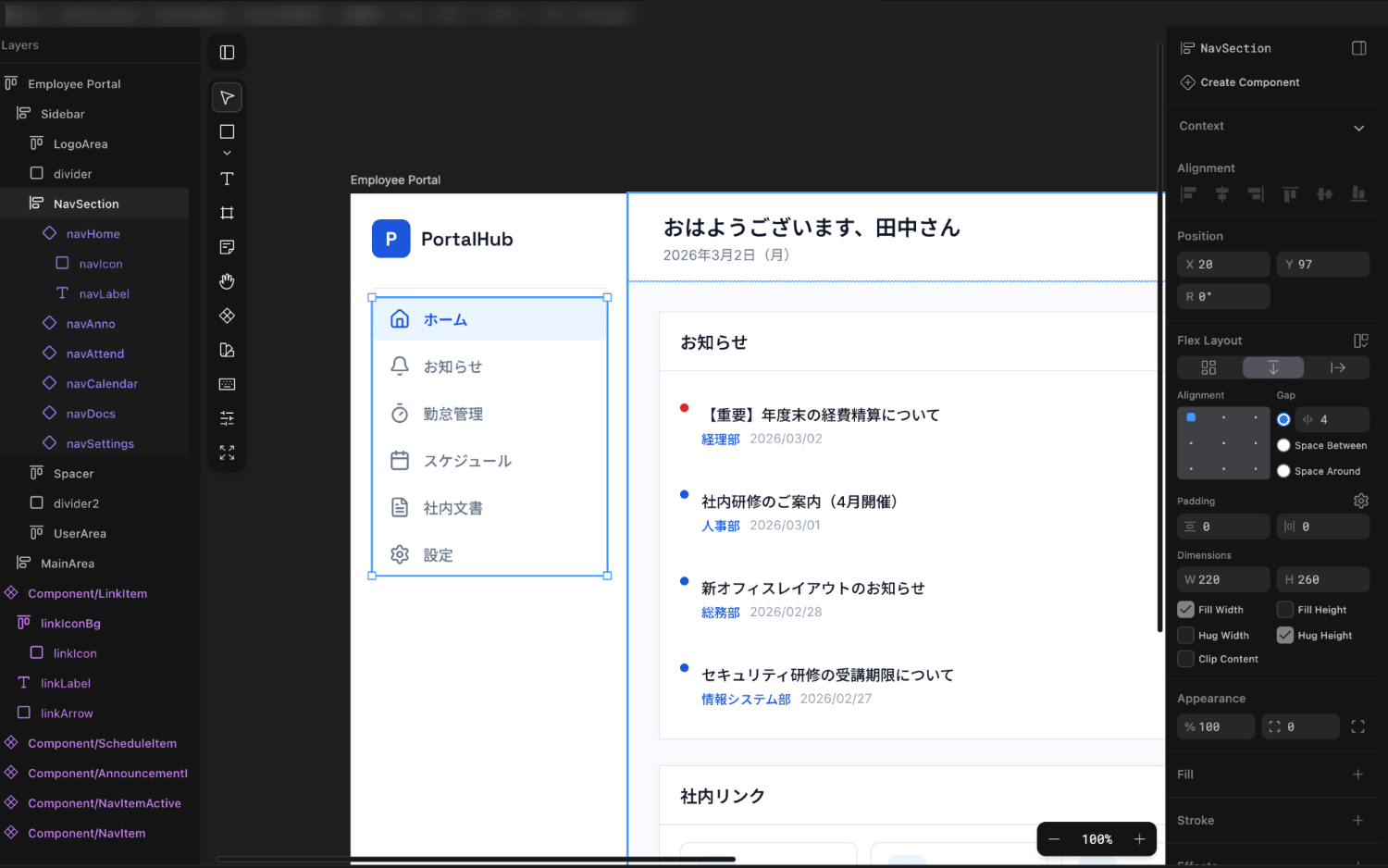
- Canvas Selection is Context: Elements selected on the canvas automatically enter the AI's context; click "New Agent" when switching topics to clear context and start fresh.
- Ask to Explain Before Acting: For major changes, ask AI to explain how it plans to change it first, confirm, then execute. Works even better with Claude Code's Plan Mode—if the plan is wrong, a single sentence can correct it; if you only realize it's wrong after the change, it costs hundreds of lines of diffs.
Verification Loop
- Visual check on the canvas;
- Verify structure in the layers panel;
- Ask AI to call
get_screenshotto self-check complex layouts; - Use
get_app_state(formerlysnapshot_layout) to troubleshoot overlaps and misalignments.
Sources: Official AI Integration / Best Practices · Pencil.dev + Claude Code Workflow · DEV: Claude Code Workflow Best Practices
Advanced Techniques
pen.dev CLI: Headless Design and Batch Production
pencil to pen (npm package @pen.dev/cli, env var PENCIL_CLI_KEY → PEN_CLI_KEY). The following has been updated for the new version. The CLI shares the same editing engine as the desktop app but requires absolutely no GUI—turning "design" into a scriptable build step:# Generate a design file in one command
pen --out login.pen --prompt "Create a modern login page with email, password, social login"
# Modify an existing design and export a 2x image
pen --in dashboard.pen --out dashboard-v2.pen --prompt "Add a sidebar navigation"
pen --in design.pen --export hero.png --export-scale 2
# Batch tasks (each task runs sequentially in an isolated editor instance)
pen --tasks batch.json
# Swap to a cheaper model for simple tasks to control costs
pen --out simple.pen --model claude-haiku-4-5 --prompt "Create a simple 404 page"CI/CD Integration
Create a CLI Key in your organization's Developer Keys settings, and you can automatically run design tasks in your pipeline:
export PEN_CLI_KEY=pen_cli_...
export ANTHROPIC_API_KEY=sk-ant-...
pen --out onboarding.pen --prompt "Create a 3-step onboarding flow"
Combined with the pen interactive shell, you can even call MCP tools directly in scripts for granular operations (execute to build nodes → get_screenshot to output images → save() to write to disk; formerly batch_design).
What running design in CI actually solves
It's not about "letting AI automatically draw designs in the pipeline" as a gimmick—the most compelling use case is filling the gap mentioned in Workflow D Deep Dive: A text diff of a .pen file shows "what nodes changed," but not "what it looks like or if it looks good." Having CI automatically render a screenshot for every PR that modifies a .pen file means reviewers don't need to install pen.dev or switch out of their IDE; they can visually judge if the change is acceptable directly on the PR page. This is the half of "design changes can be reviewed like code" that text diffs alone cannot achieve, and must be supplemented by image generation.
 rather than an inline image—GitHub Actions Artifacts themselves don't provide public direct links. To embed images directly in comments, you'd need an additional image hosting/object storage step, which hasn't been verified for you here, so it's not included in the example.# .github/workflows/design.yml
name: pen.dev Design Preview
on:
pull_request:
paths:
- '**/*.pen'
jobs:
design-preview:
runs-on: ubuntu-latest
permissions:
contents: read
pull-requests: write
steps:
- name: Checkout code (needs fetch-depth to diff .pen changes)
uses: actions/checkout@v4
with:
fetch-depth: 0
# CLI requires Node.js 18+, see Official Installation
- name: Setup Node.js
uses: actions/setup-node@v4
with:
node-version: '20'
cache: 'npm'
- name: Install pen.dev CLI
run: npm install -g @pen.dev/cli
- name: Export modified .pen files in this PR to PNG
env:
PEN_CLI_KEY: ${{ secrets.PEN_CLI_KEY }}
ANTHROPIC_API_KEY: ${{ secrets.ANTHROPIC_API_KEY }}
run: |
mkdir -p design-previews
git fetch origin "${{ github.base_ref }}"
for f in $(git diff --name-only "origin/${{ github.base_ref }}"...HEAD -- '*.pen'); do
[ -f "$f" ] || continue
name=$(echo "$f" | tr '/' '_' | sed 's/\.pen$//')
pen --in "$f" --export "design-previews/${name}.png" --export-scale 2
done
- name: Upload design preview artifact
uses: actions/upload-artifact@v4
with:
name: design-previews
path: design-previews/
if-no-files-found: ignore
- name: Comment on PR with artifact link
if: always()
uses: actions/github-script@v7
with:
script: |
const runUrl = `${context.serverUrl}/${context.repo.owner}/${context.repo.repo}/actions/runs/${context.runId}`;
github.rest.issues.createComment({
issue_number: context.issue.number,
owner: context.repo.owner,
repo: context.repo.repo,
body: `The .pen designs modified in this PR have been rendered. See the preview images in the [Artifacts for this workflow run](${runUrl}).`
});Key points checked against official parameters: pen --in <path> --export <path> is valid without --out (--out is only required when not using --export); --export-scale 2 outputs a 2x image so details are visible on smaller screens; PEN_CLI_KEY uses a CI Key instead of interactive login, and it takes precedence over any locally saved session tokens, which is why it works on an unattended runner.
Script Node: Data-Driven Design
For structures like charts, grids, and patterns that are "painful to build manually", use Script nodes to let code generate layers: declare @input parameters to get visual knobs in the properties panel; binding inputs to variables (like $primary) allows them to automatically respond to theme switching. The official example repository highagency/pencil-scripts provides ready-to-use chart/grid/pattern scripts.
Create a script that renders a horizontal bar chart with 5 bars.
Add inputs for the bar color, gap between bars, and an array of values.
Combining with the Claude Code Ecosystem
- Skills: Solidify repetitive workflows into skills, such as the community's
/create-design-system(five-stage design system) and pencil-to-code (standardized conversion of .pen → React components). - Plan Mode: Plan large features before acting; plan mode is read-only, if the direction is wrong, one sentence can correct it.
- Design Tokens File: Let Claude Code maintain a
design-tokens.ts/design-tokens.cssas a single source of truth for both design and code, updating in one place takes effect in both as the project evolves. - Version Control Fallback: Agentic modifications across multiple files can occasionally break things—commit frequently to leave checkpoints; .pen undo/redo is limited, Git is your regret pill.
Sources: Official pen.dev CLI · Official Code on Canvas · Pencil.dev + Claude Code Workflow
Pitfalls Checklist
Methodology Pitfalls
Operational Pitfalls
| Pitfall | Workaround |
|---|---|
| Elements scattered on canvas, AI can't read them | Always design inside a named Frame—MCP tools read data by Frame |
| Layers named "Group 47" / "Rectangle 12" | Semantic naming (e.g., PrimaryActionButton, NotificationBadge); names are passed to AI via MCP, helping it understand intent, not just appearance |
| AI doesn't know info outside of visuals | Interaction behaviors, breakpoints, data requirements, accessibility—write them in comments/notes; AI can't deduce what it can't see |
| One giant prompt to generate the whole site | Small iterations: design a small piece → generate → review → polish → next piece |
| Forgetting to save and losing work | No autosave; press Cmd/Ctrl + S frequently + Git commit before major changes |
| Undo doesn't go far enough | Undo/redo is more limited than traditional design tools, rely on Git history for rollbacks |
| Breaking .pen by manually editing it | Official rule: Do not manually edit .pen, use the editor or MCP tools |
| Figma image paste fails | Known limitation: Copy/paste doesn't bring images, use full file import or export images separately |
| Lorem ipsum fools you | Evaluate designs with realistic content; lorem ipsum masks information hierarchy issues |
| Real-time collaboration expectations fail | No multiplayer yet; use Git branching + PR reviews for design |
Cognitive Pitfalls
- AI output quality ∝ the quality of context you provide—this is the summary of all practices. Vague prompt + no context = generic template; specific prompt + canvas/style/repo context = code that belongs to your product.
- pen.dev is not a Figma replacement (at least not yet): It doesn't have all Figma features; its strengths are internal tools, rapid prototyping, and design-code integration. Teams requiring heavy collaboration and high-fidelity handoffs still need to weigh the trade-offs.
- Tools iterate quickly: Menu locations and command syntax may change; grasping the principle (context flows to the code agent via structured protocols) lasts longer than memorizing the UI.
Sources: Jerad Bitner · Best Practices and Pro Tips · Official Troubleshooting
Real-world Case Studies
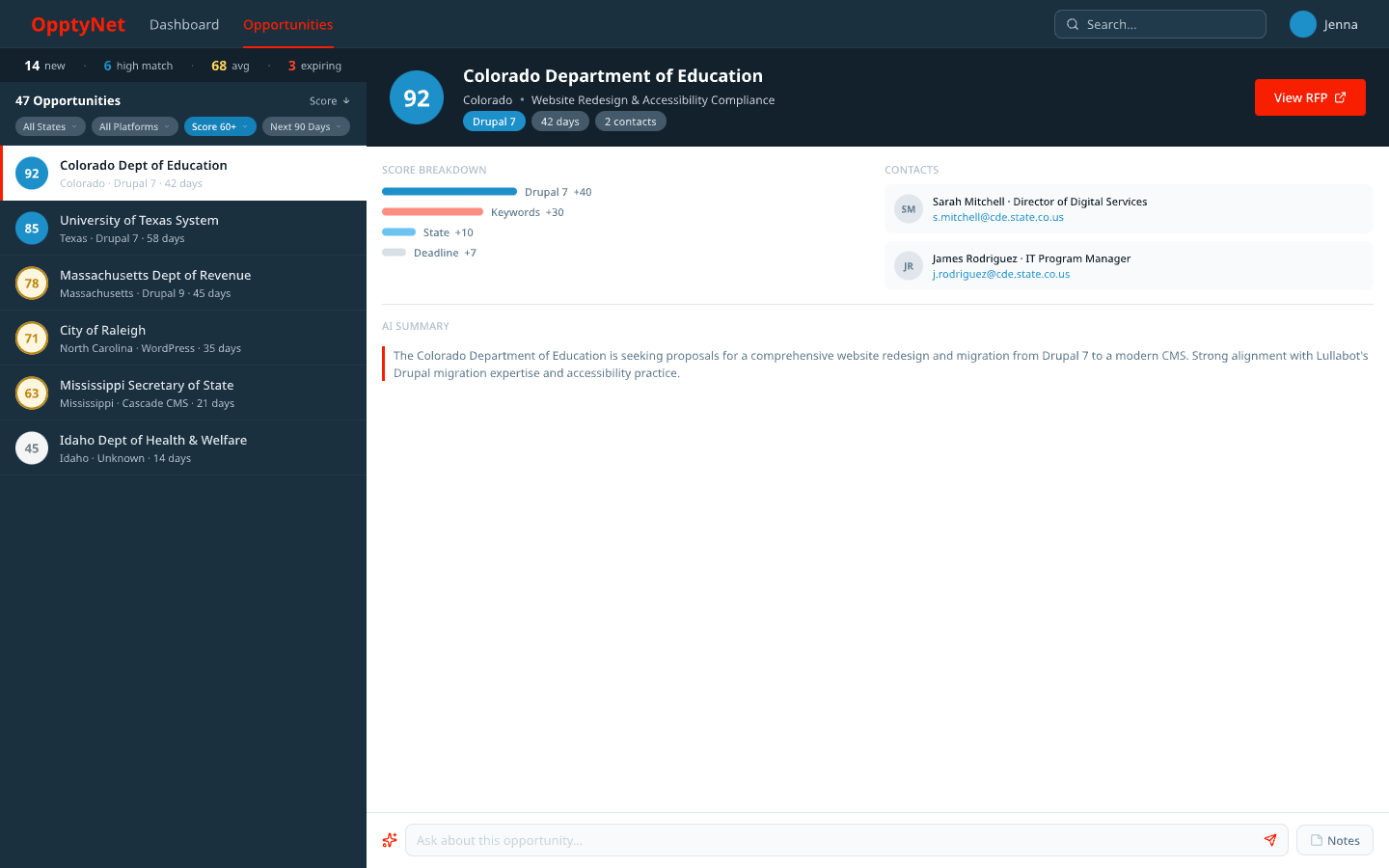
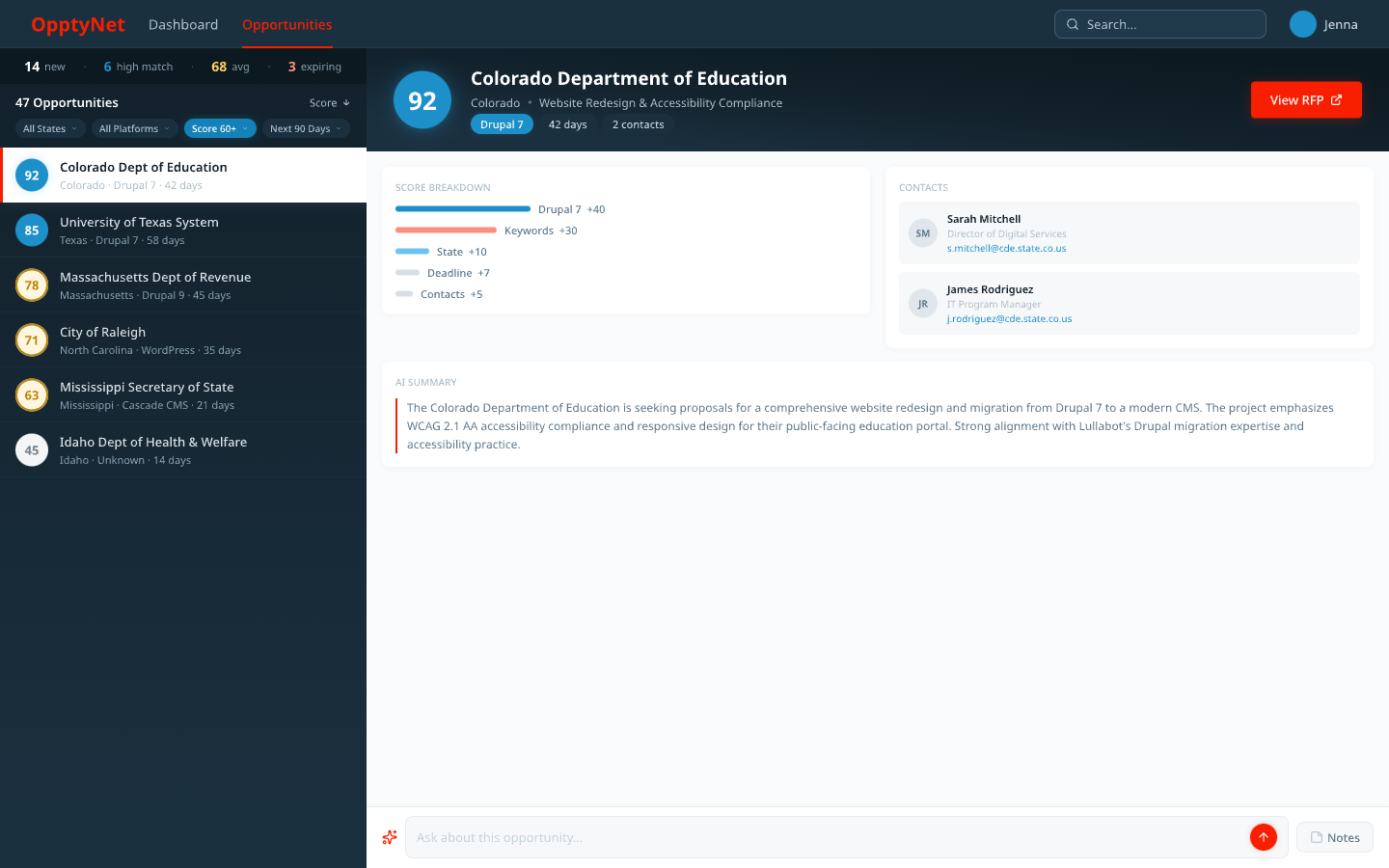
Case 1: OpptyNet — Seven versions, three hours, one conversation thread
Lullabot's internal government Request for Proposal (RFP) filtering tool, designed entirely conversationally using pen.dev + Claude Code:
| Version | Approach | Conclusion |
|---|---|---|
| V1 | Card list + Filter bar + Pagination | Looks good but visually heavy, scanning 20–50 items is too slow |
| V2 | Dense table + Inline rating bars | Scans fast but too cold, "not better than the spreadsheet she already has" |
| V3 | Email client style split pane: list on left, details on right | Final layout: scan on left, judge on right, no page jumps |
| V4–V5 | Split pane + Dark Hero + Stats cards mashup | Right direction but cluttered |
| V6 | Fixes based on design review: Stats condensed to single row, filter pills added, Ask AI docked to bottom | Solves the "purpose problem" |
| V7 | Visual polish: Rating badge ambient lighting, panel gradients, soft shadows | Information architecture unchanged, just a new "skin" |
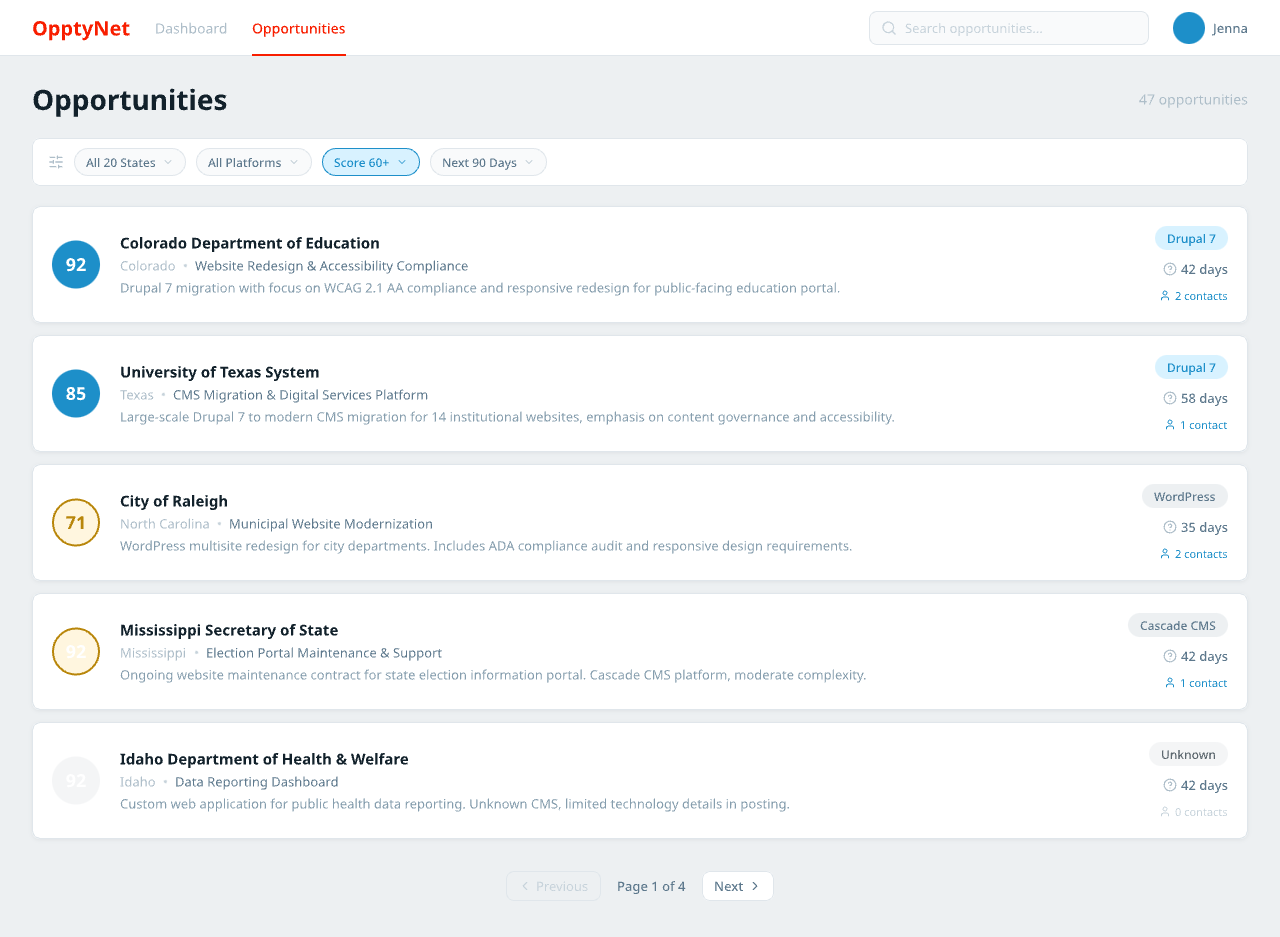
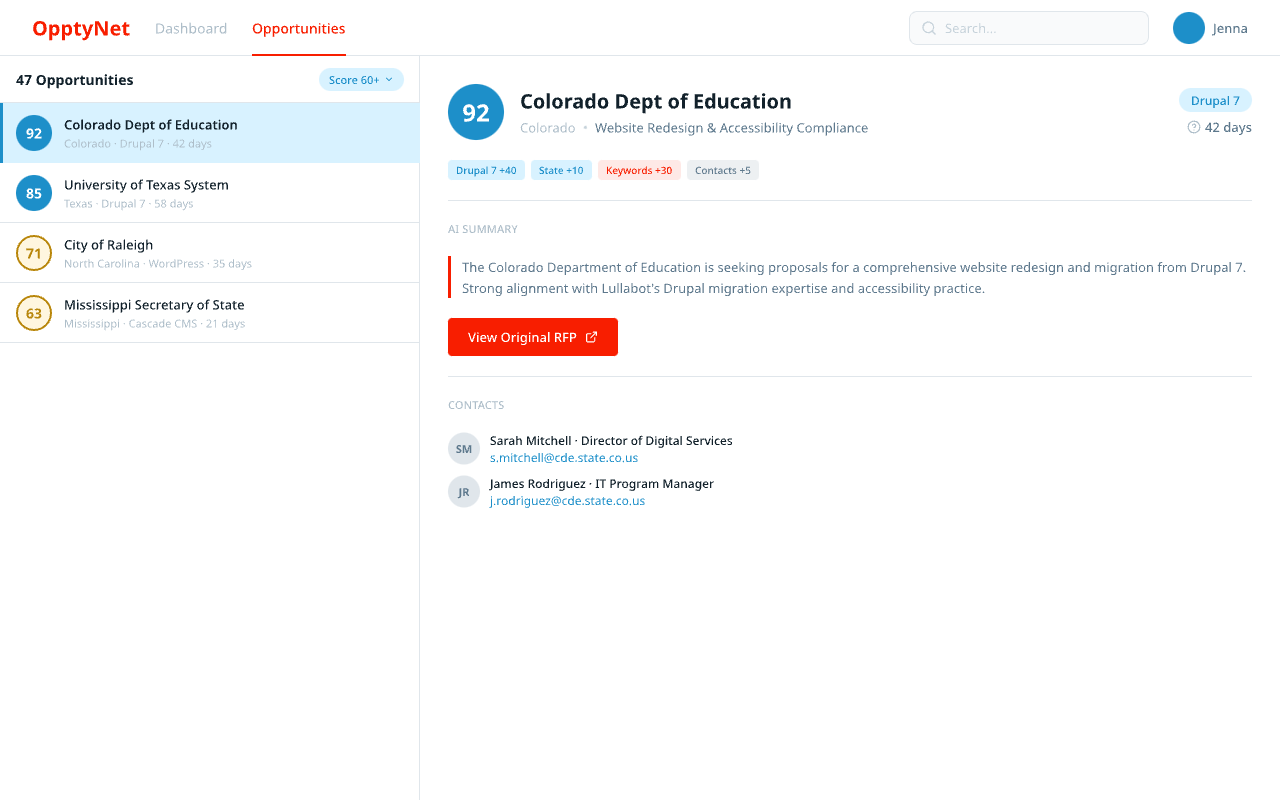
Images above sourced from: Jerad Bitner's Blog
The author's three takeaways: ① Methodology precedes pixels—pixel iteration across seven rounds wouldn't uncover a missing filter; ② Conversational iteration is surprisingly fast—"condense stats into one row" is just one sentence and one round; ③ Design and code share the same environment, sharing context from the very beginning.
Case 2: Upstraker — The compound interest of library reuse
The second internal tool directly imported the Lullabot design library accumulated from the first project (56 color variables + 16 components), and concepts formed significantly faster; light and dark themes originated from the same set of library tokens. The value of a design library cashes in starting with the second project, and grows with compound interest as the number of projects increases.
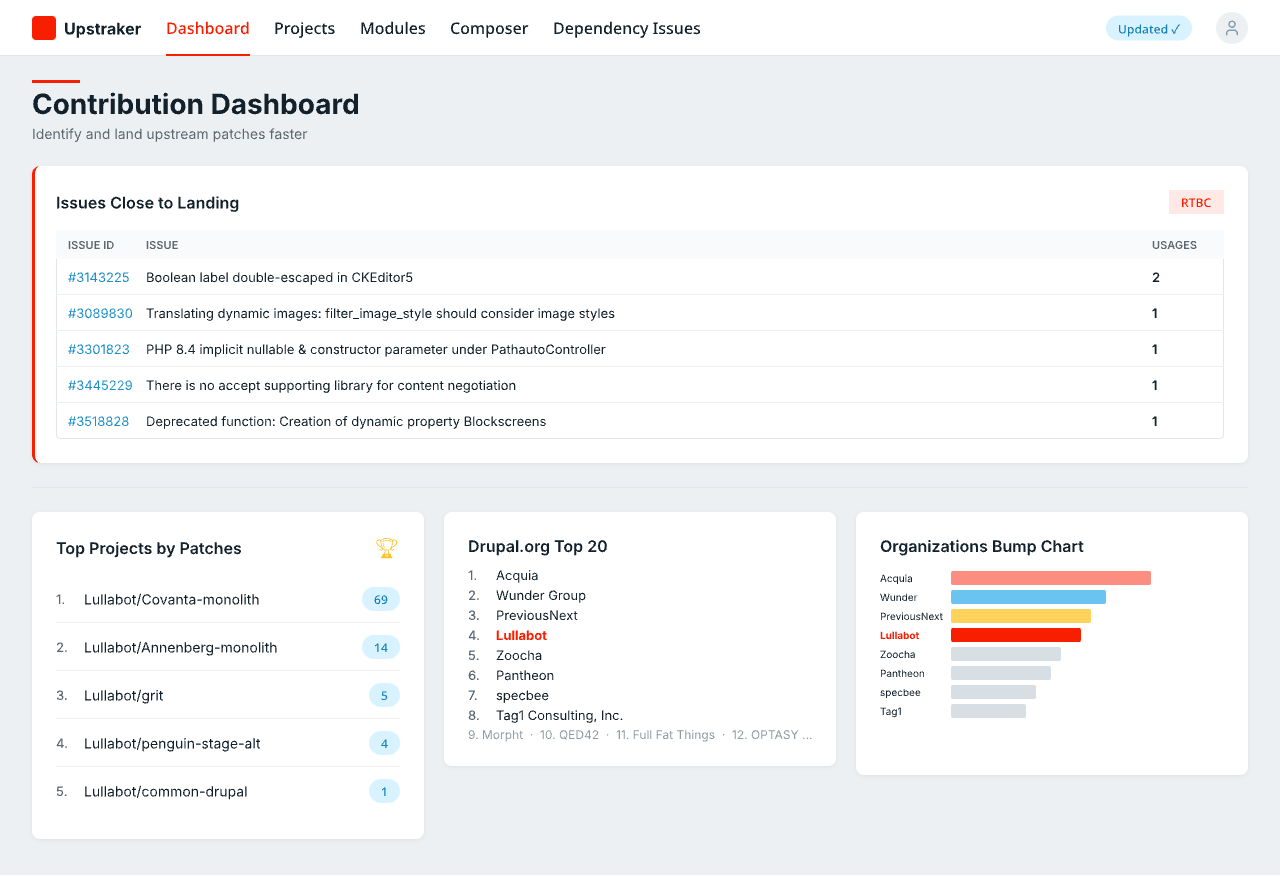
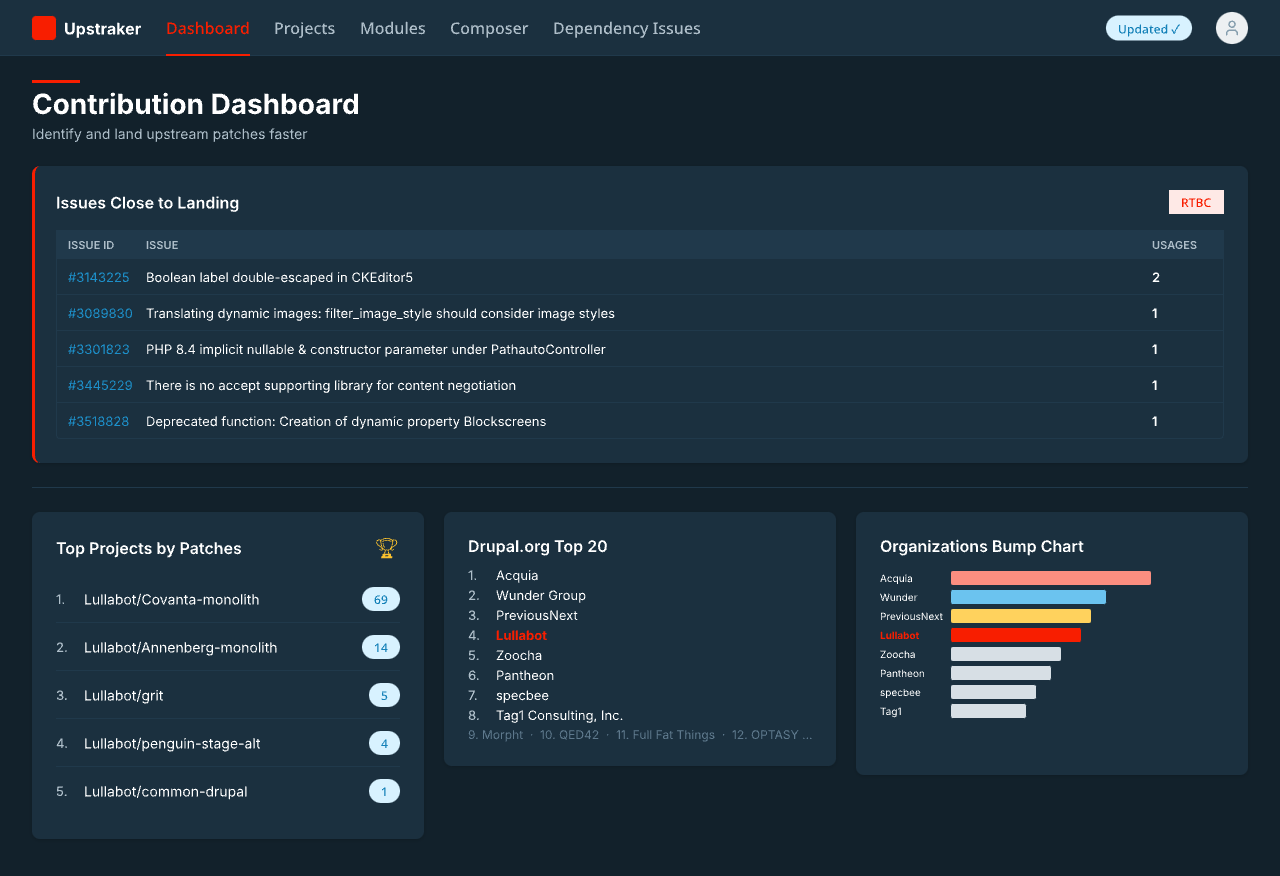
Image Source: Jerad Bitner's Blog
Case 3: Multiple people editing the same design simultaneously — This workflow will be slower here
The first two cases were "one person + one conversation thread" scenarios, which is currently the sweet spot for the pen.dev + Claude Code approach. Conversely, scenarios where multiple people need to simultaneously edit the same screen of design are where it is slower relative to Figma—this isn't a story of a specific project failing (no such public case was found), but a capability boundary that can be found in the official docs and repeatedly confirmed by independent third-party reviews.
- The official definition: From the Troubleshooting page—"No real-time collaboration: currently collaborate via Git—branch in parallel, pull → edit → commit → push → PR." This is not a "temporary bug," but an architectural choice: .pen's collaboration model is "branch + PR," not "multiplayer with visible cursors on the same screen."
- Confirmation from independent reviews: Tao An, reviewing pen.dev's Git-first stance, wrote, "there's no real-time collaboration, which is a notable gap for teams used to Figma's multiplayer editing," summarizing the trade-off as "Figma optimizes for designers collaborating on design. Pencil optimizes for design integrating with development"—implying that for collaborative design scenarios, pen.dev is naturally not playing on home turf.
- Compound effect: Xinran Ma's 2026-04-19 test also mentioned an amplifying factor—no autosave yet, "it's relatively common to hit a crash" and "if it goes down mid-session, you lose work with no recovery option". In single-player scenarios, this is just a habit of "pressing Cmd/Ctrl+S frequently"; but in multiplayer parallel scenarios requiring frequent handoffs of the same file, a sudden crash compounded by the lack of official solutions for .pen conflicts amplifies the cost.
git clone); multiple people simultaneously doing parallel fine-tuning for a design review on the same screen; needing complex click-through interaction prototypes to demo to non-technical stakeholders.Sources: Official Troubleshooting · Tao An: Design Files Don't Belong in Git. Pencil.dev Says We're All Wrong. · Xinran Ma: Exploring Pencil.dev — Walkthrough and Impressions (2026-04-19)
Resources & References
Official Resources
| Resource | Description |
|---|---|
| pencil.dev | Official Website & Downloads |
| docs.pencil.dev | Official Documentation (Installation / AI Integration / Design↔Code / CLI / .pen format) |
| pencil.dev/prompts | Official Prompt Gallery |
| highagency/pencil-scripts | Official Script Node Example Repository |
| Claude Code Docs | Installation, MCP config, Skills, Plan Mode |